Setting Up Windows Remote Desktop over IPv6
Introduction
I have a Windows PC at home that I want to access via Remote Desktop. The home network uses IPv6—there’s no public IPv4 address—so the connection must go through IPv6. However, Windows Remote Desktop defaults to IPv4, so some configuration is needed.
Prerequisites
A Windows PC
A domain name
A Cloudflare account
An IPv6-capable network
Pre-checks
Check IPv6 support
Open a browser
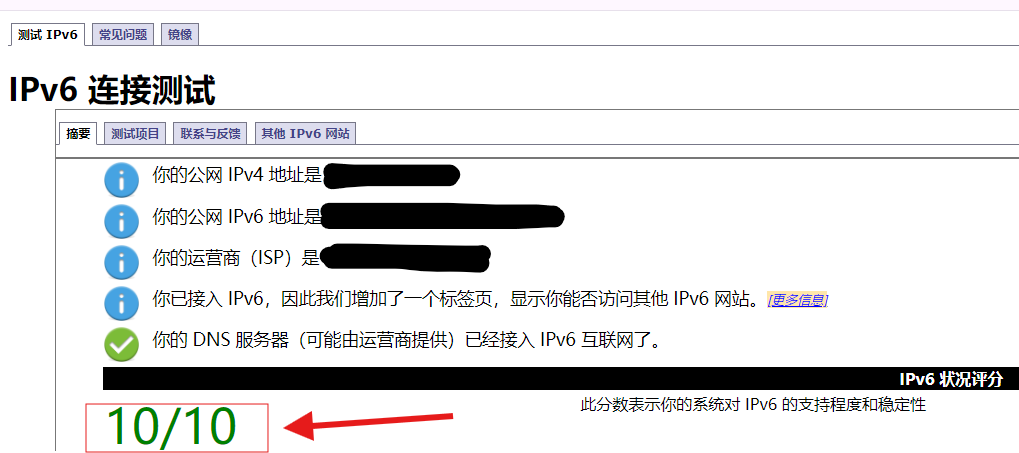
Visit IPv6 test site
If the page shows IPv6 support (as shown below), you’re good. If not, contact your ISP.
Check if Windows Remote Desktop is enabled
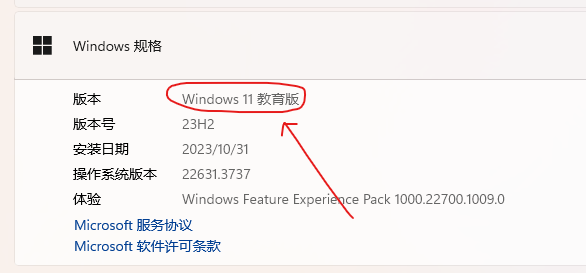
Right-click "This PC" and select "System"

Verify your Windows edition is Pro. Windows 11 Pro editions include: Pro, Workstation Pro, Enterprise, Education, Pro Education. These support RDP natively. If you have a different edition, upgrade to Pro or use RDP Wrapper.
Enable Remote Desktop: click "Remote Desktop" in the related settings, toggle it on, and check "Require devices to use Network Level Authentication"
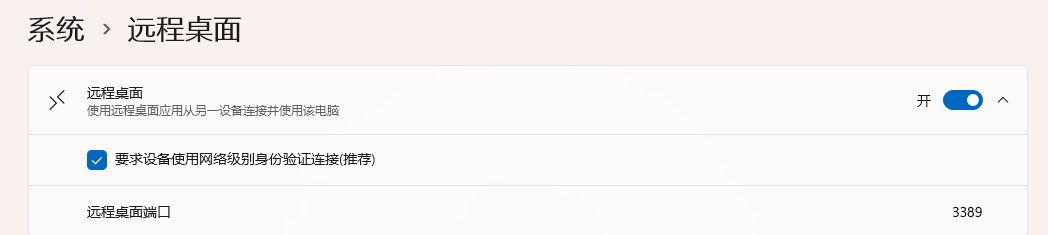
Remote Desktop is now enabled for LAN access via IPv4. To use IPv6, continue with the steps below.
Set Up Cloudflare DDNS
See the guide: Quick Start Cloudflare DDNS
Test Remote Desktop Connection
Power on the target host
Open the Remote Desktop client on a different network (Windows Remote Desktop, Android RD Client, etc.)
Enter the Cloudflare domain name and click Connect
Enter your username and password and click Connect
Connection established
This article is translated by deepseek-v4-flash (model: deepseek/deepseek-v4-flash).